# Notice d'utilisation du système de projection-visioconférence Salle Tregouboff

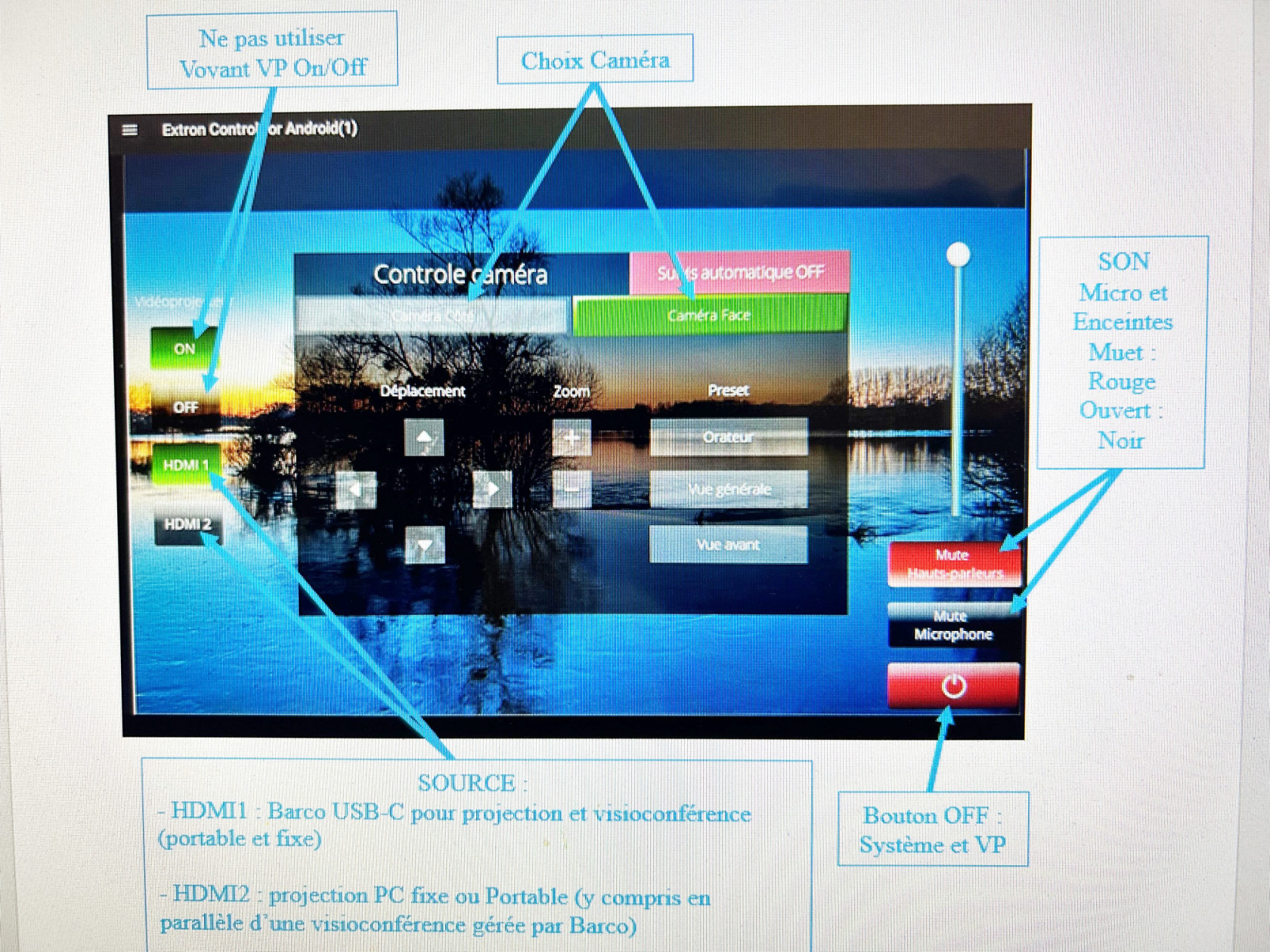
<u><span style="font-size: 16.0pt;">Interface générale de la tablette pilote</span></u>

[![IMG_0338b.jpg](https://doc.imev-mer.fr/uploads/images/gallery/2023-04/scaled-1680-/img-0338b.jpg)](https://doc.imev-mer.fr/uploads/images/gallery/2023-04/img-0338b.jpg)

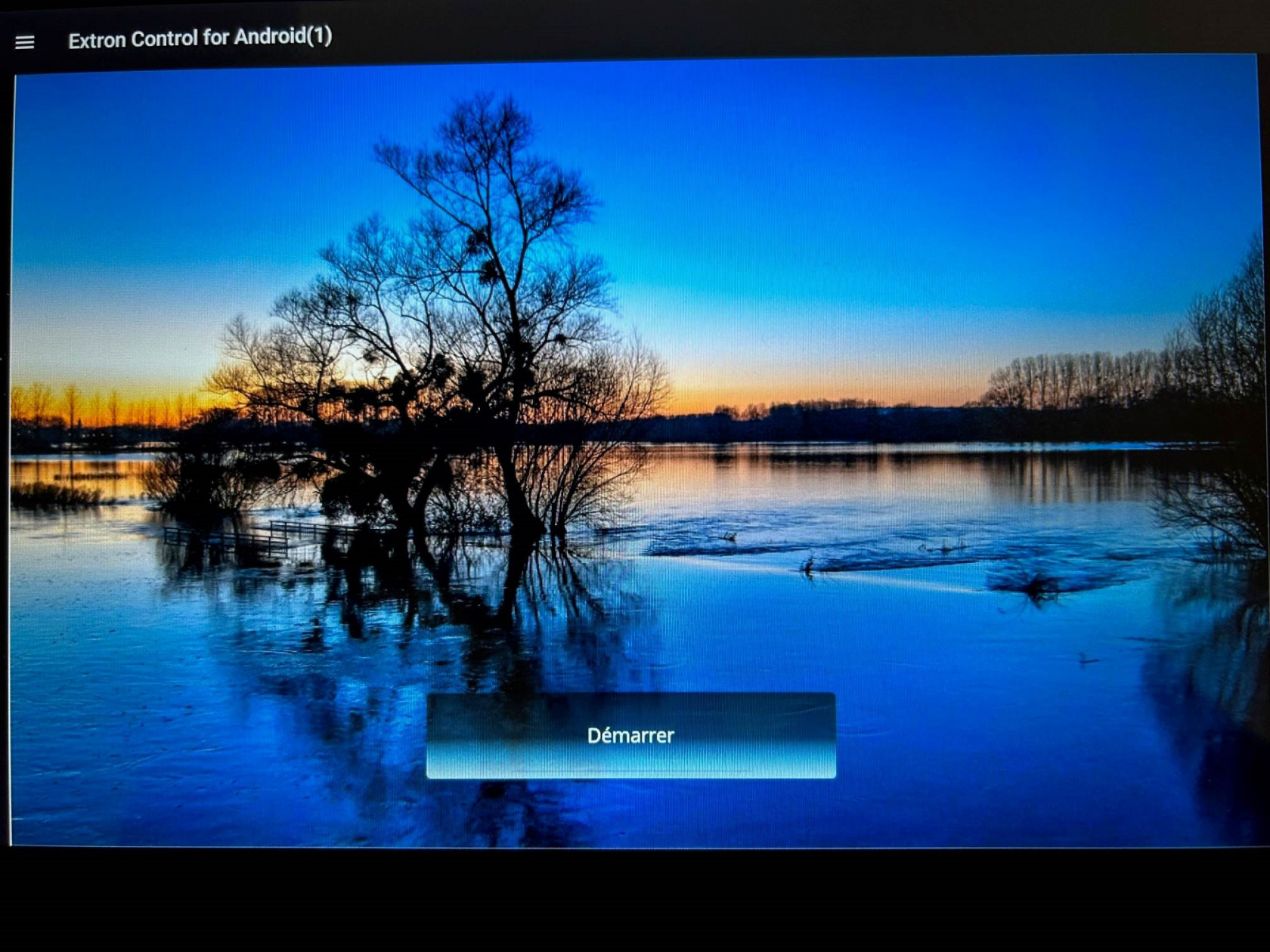
<u><span style="font-size: 16.0pt;">Démarrer le système</span></u>

<div drawio-diagram="71"><img src="https://doc.imev-mer.fr/uploads/images/drawio/2023-04/drawing-8-1680772249.png" alt=""/></div>

<u><span style="font-size: 12.0pt; font-family: 'Liberation Serif',serif; mso-fareast-font-family: NSimSun; mso-bidi-font-family: 'Lucida Sans'; mso-font-kerning: 1.0pt; mso-ansi-language: FR; mso-fareast-language: ZH-CN; mso-bidi-language: HI;"></span></u>

![demarrer.jpg](https://doc.imev-mer.fr/uploads/images/gallery/2023-04/scaled-1680-/demarrer.jpg)

<u><span style="font-size: 16.0pt;">Eteindre le système</span></u>

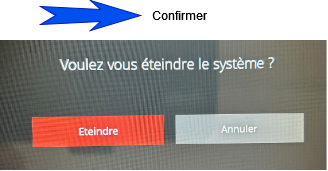
<div drawio-diagram="73"><img src="https://doc.imev-mer.fr/uploads/images/drawio/2023-04/drawing-8-1680772466.png" alt=""/></div>

<div drawio-diagram="74"><img src="https://doc.imev-mer.fr/uploads/images/drawio/2023-04/drawing-8-1680772553.png" alt=""/></div>

## <span style="text-decoration: underline;">Projection et Visioconférence</span>

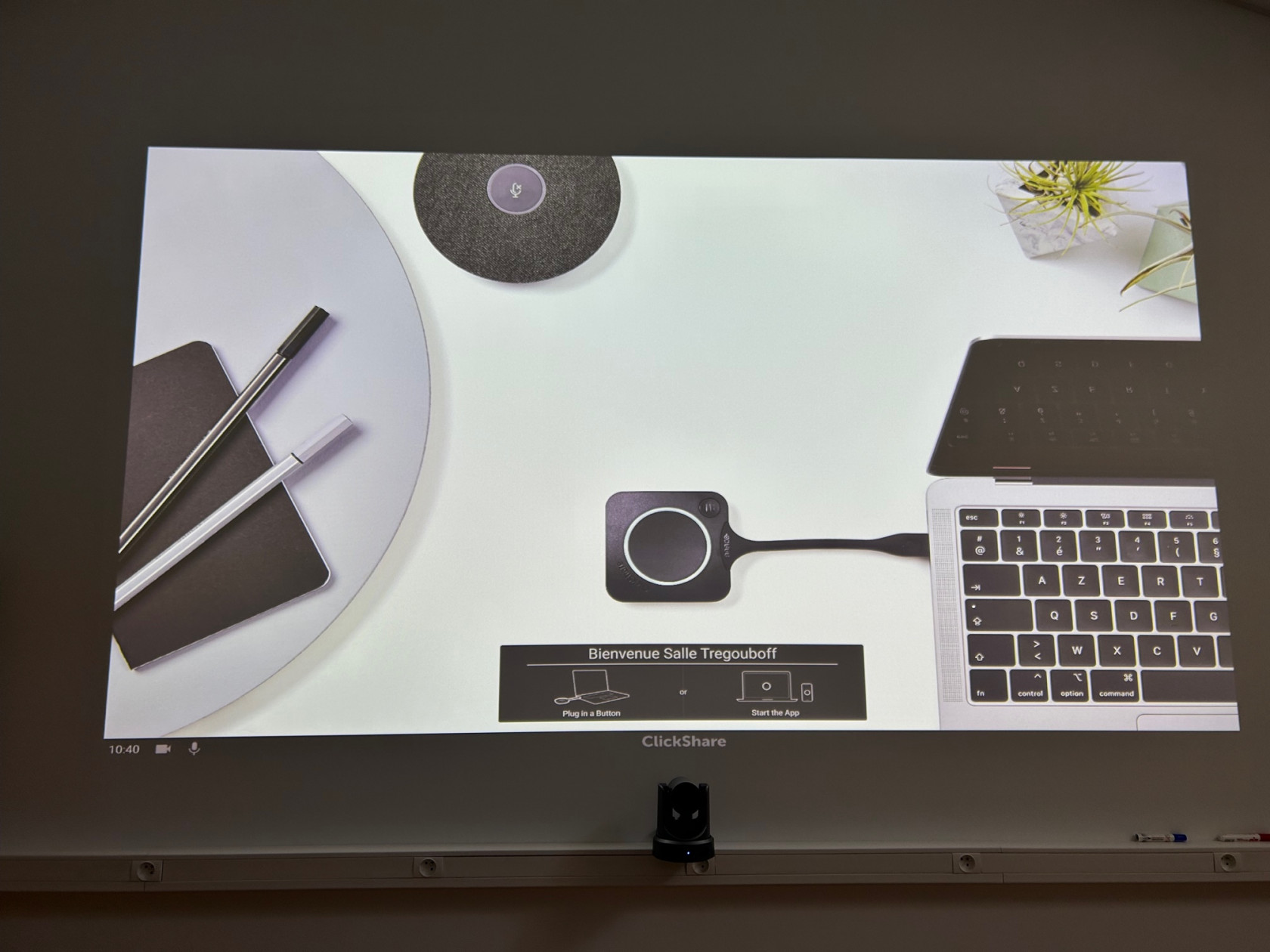
<u><span style="font-size: 18.0pt;">ATTENTION :</span></u><span style="font-size: 18.0pt;"> </span>Quand vous utilisez le flux HDMI1 vous êtes sur le système BARCO : l’écran suivant doit obligatoirement s’afficher au mur ou cela signifie qu’il y a un problème et vous ne pourrez pas vous connecter pour projeter connectez-vous au câble HDMI en vous positionnant sur HDMI2 sur la tablette tactile ou en cas de panique appelez-moi (David Emani) au 0608971203.
![IMG_0193.jpg](https://doc.imev-mer.fr/uploads/images/gallery/2023-04/scaled-1680-/img-0193.jpg)

Etre sur HDMI2 ne vous empêche pas d'utiliser le Barco pour une visioconférence, qui ne peut fonctionner qu'avec lui pour une visio liée au système intégré de la salle.

<div drawio-diagram="92"><img src="https://doc.imev-mer.fr/uploads/images/drawio/2023-04/drawing-8-1680789335.png" alt=""/></div>

- Lien de l’application (fichier dmg) :

[https://www.barco.com/en/clickshare/support/software/R3306192?majorVersion=04&amp;minorVersion=28&amp;patchVersion=00&amp;buildVersion=011](https://dropsu.sorbonne-universite.fr/s/isHbRECFNsAqYJa?path=%2FClickShare4MacOSx)

- Ou Consultez le doc : « *Préparer son MAC à l’utilisation du système BARCO* »

### A/ Projection

<span style="color: #333333;">1- Démarrer le système</span>

<span style="color: #333333;">Le VP se met automatiquement en route (petit clac) attendre qu’il chauffe (lumière verte clignotante sous le VP, quand elle est fixe c’est prêt)</span>

<span style="color: #333333;">2- Choix de la source : </span>

<div drawio-diagram="86"><img src="https://doc.imev-mer.fr/uploads/images/drawio/2023-04/drawing-8-1680773377.png" alt=""/></div>

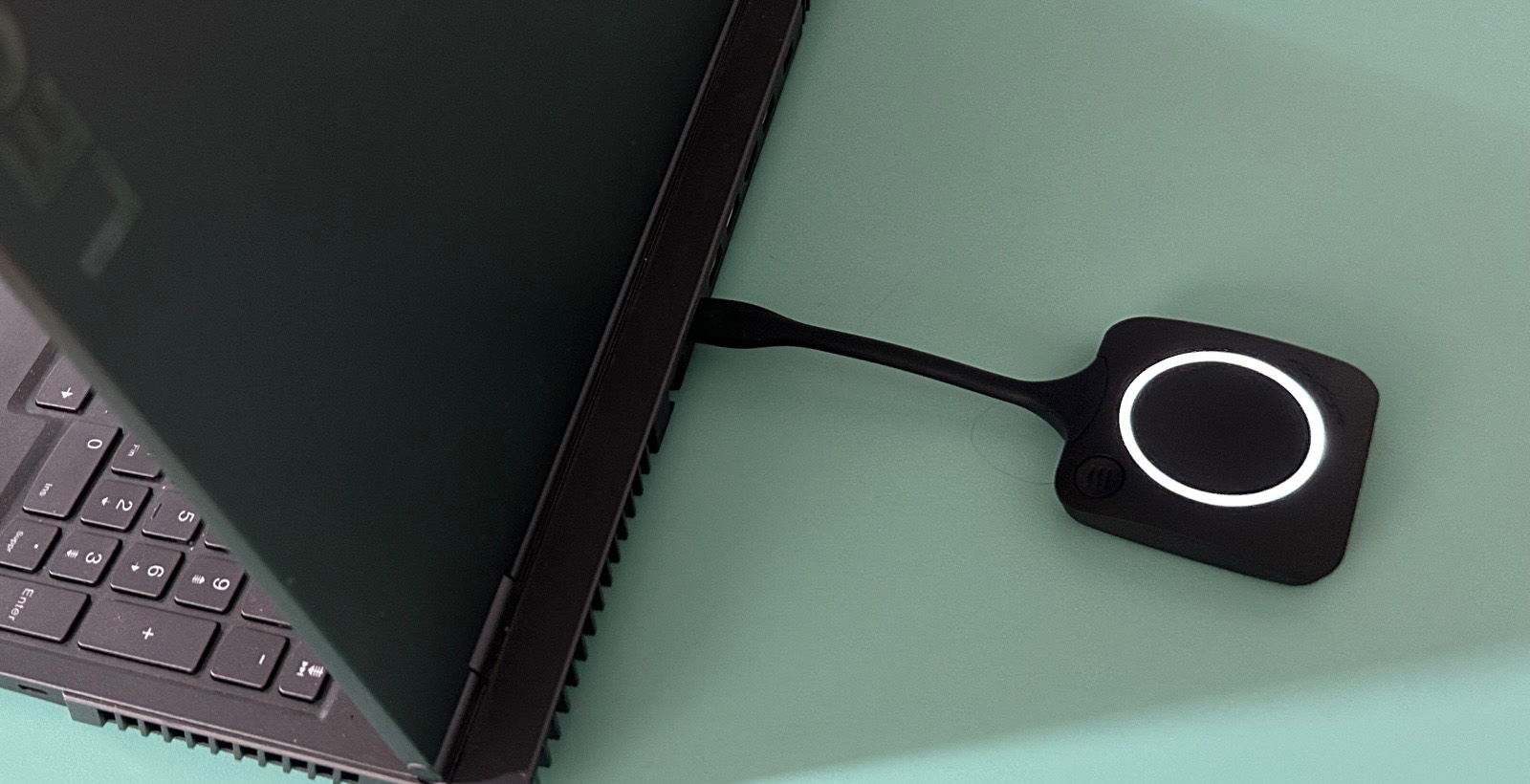
**<span style="color: #333333;">BARCO</span>**<span style="color: #333333;"> (*USB-C*) :</span>

<span style="color: #333333;">![barco_usbC.png](https://doc.imev-mer.fr/uploads/images/gallery/2023-04/scaled-1680-/barco-usbc.png)</span>

<span style="color: #333333;">Théoriquement la reconnaissance est automatique avec le BARCO (comme un nouveau dispositif USB que l’on connecte) et il va aller repérer le système.</span>  
  
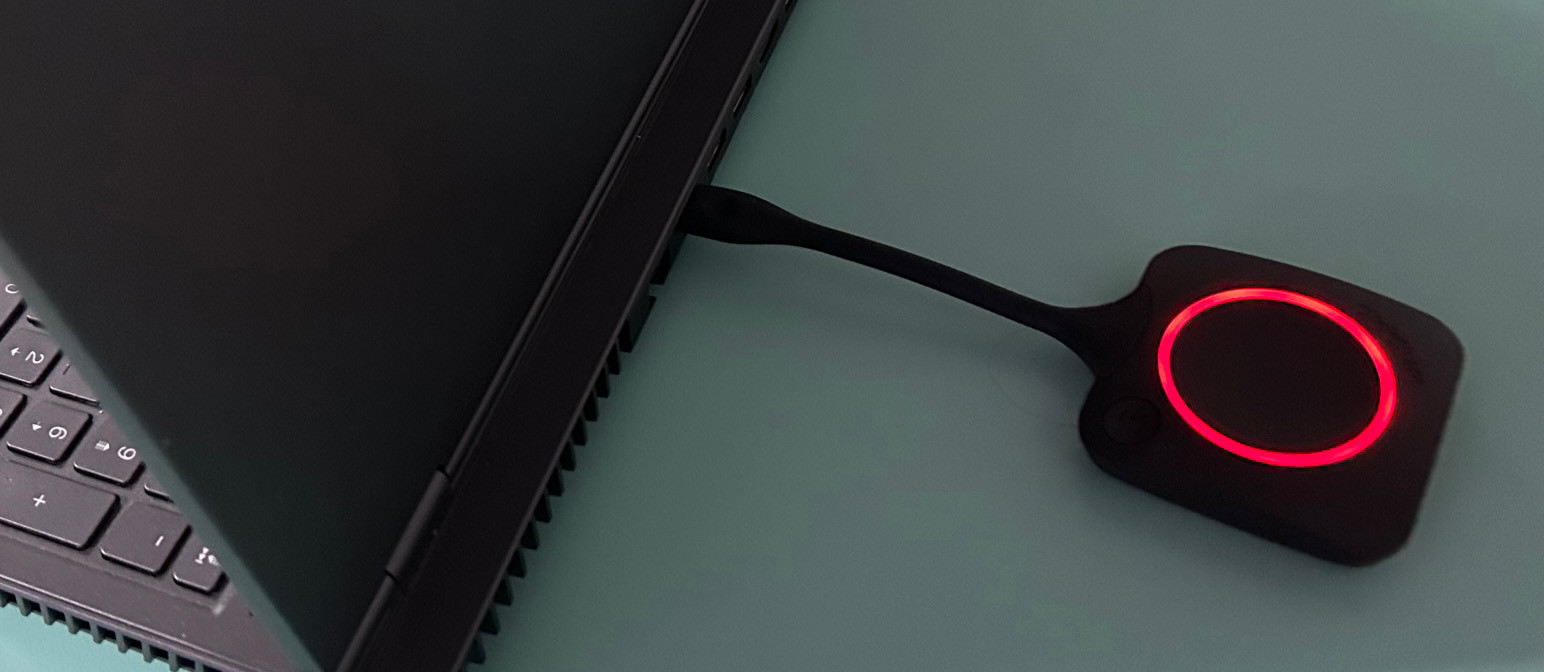
<span style="color: #333333;">Une fois que le BARCO (bouton ClickShare) est branché à votre ordinateur, une LED blanche s’allume.</span>

<span style="color: #333333;">Il faut attendre que la lumière blanche devienne fixe (environ 7 secondes dû au téléchargement du driver et de la connexion).</span>

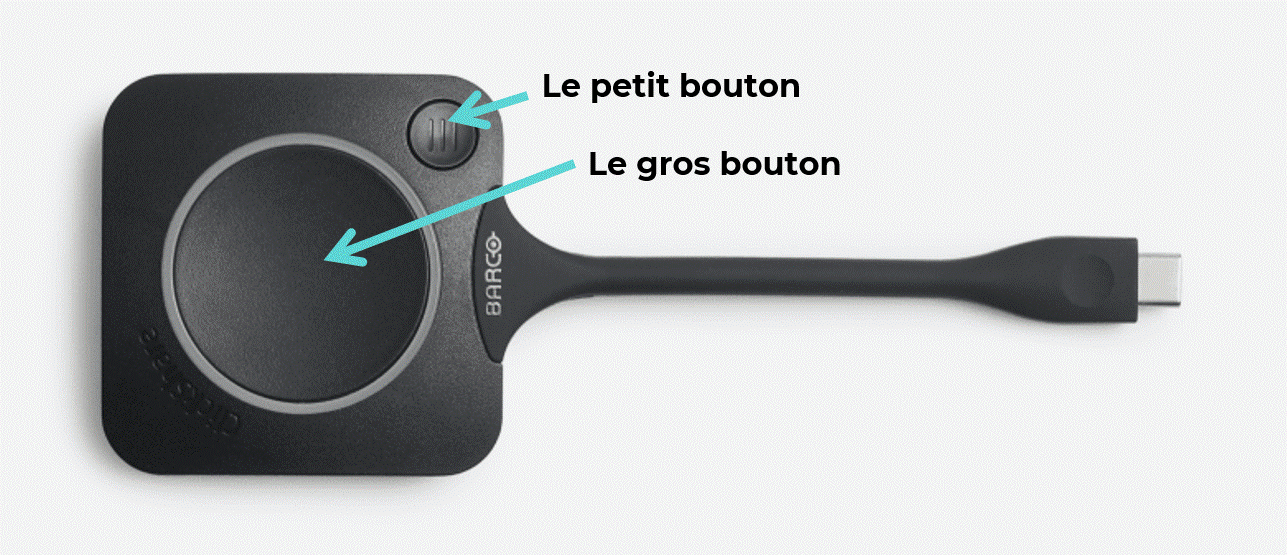
<span style="color: #333333;">Pour projeter, appuyer sur le « gros » bouton du BARCO : la lumière passe au rouge c’est à dire que votre écran est projeté.</span>  
O<span style="color: #333333;">n coupe ou allume la projection de vos documents à souhait en appuyant sur la tête du BARCO (sans le déconnecter) : </span>

<span style="color: #333333;">LED blanche, « projection off »; LED rouge « projection on ».</span>

<span style="color: #333333;">  
![IMG_barcoblanc.jpg](https://doc.imev-mer.fr/uploads/images/gallery/2023-04/scaled-1680-/img-barcoblanc.jpg)![IMG_barcorouge.jpg](https://doc.imev-mer.fr/uploads/images/gallery/2023-04/scaled-1680-/img-barcorouge.jpg)  
</span>

#####   


##### <span style="mso-bidi-font-family: 'Liberation Serif'; color: white;"><span style="color: rgb(0, 0, 0);">Synthèse projection :</span></span>

<span style="color: rgb(35, 111, 161);">PC portable : HDMI 1 + BARCO\_USB-C + Presser Blanc/Rouge (ou HDMI2 tout court)  
</span>

<span style="color: rgb(35, 111, 161);">PC fixe : Allumer PC + HDMI2 (ou HDMI1 + BARCO\_USB-C + Presser Blanc/Rouge)</span>

### B/ Visioconférence

<span style="mso-spacerun: yes;"> </span>1.<span style="mso-spacerun: yes;"> </span>Démarrer le système

**Une visioconférence n’est accessible que via le système BARCO mais cela n'empêche pas en cas de problème de projection à l'écran de passer en parallèle sur le flux HDMI2 pour projeter, en utilisant le câble HDMI disponible sur le pupitre.**

<u>Remarque</u> : les hauts parleurs et le microphone doivent être en position « ouvert ».

<div drawio-diagram="93"><img src="https://doc.imev-mer.fr/uploads/images/drawio/2023-04/drawing-8-1680789356.png" alt=""/></div>

<span style="mso-spacerun: yes;"> </span>2.<span style="mso-spacerun: yes;"> </span>Connecter le BARCO au PC pour vous lier à la ROOM Tregouboff.

Le procédé est similaire à ce qui a été décrit plus haut.

<span style="mso-spacerun: yes;"> </span><span style="mso-spacerun: yes;"> </span>3. <span style="mso-spacerun: yes;"> </span>Connecter le PC à la plateforme de visioconférence (Zoom, Teams...etc...)

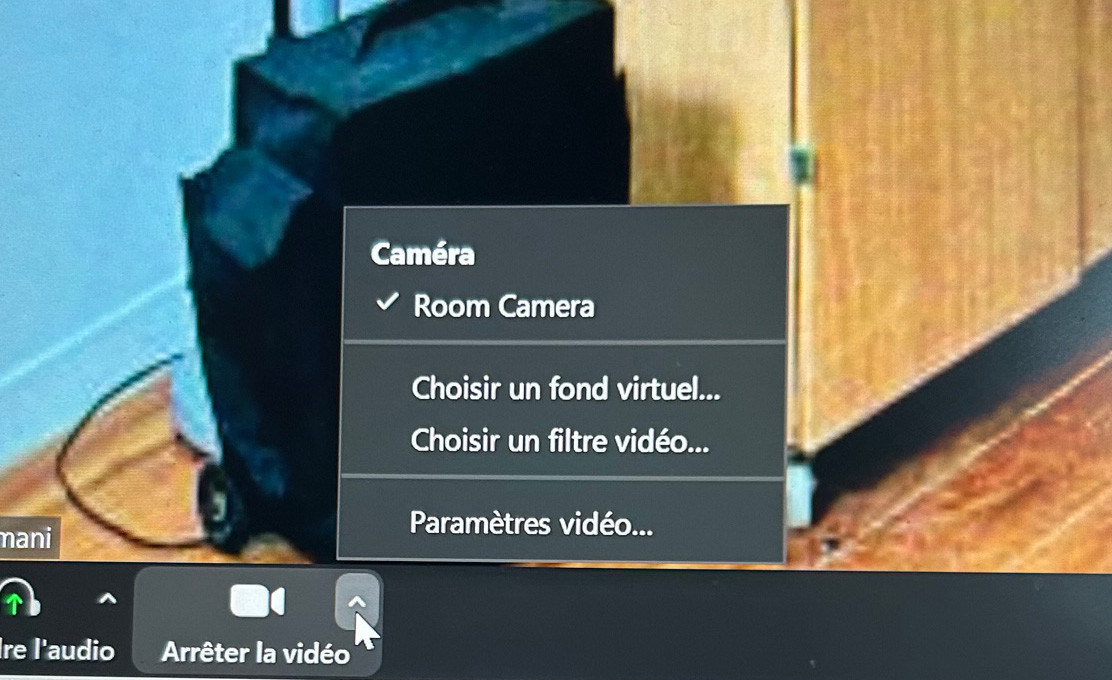
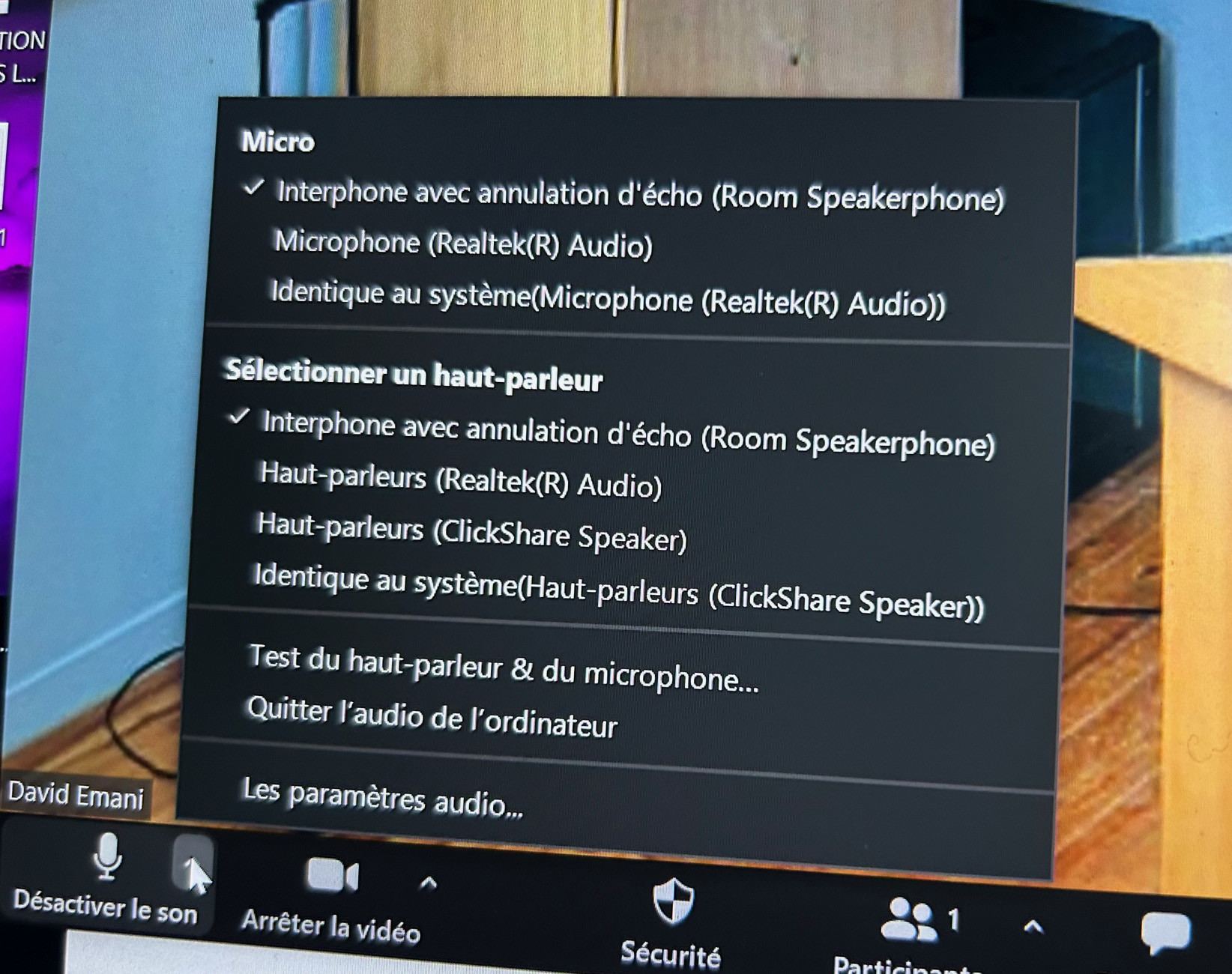
<span style="mso-spacerun: yes;"> </span>4. <span style="mso-spacerun: yes;"> </span>Lancez votre plateforme et assurez-vous que les paramètres audio et vidéo sont ceux de la Room Tregouboff.
![IMG_optionvisio2.jpg](https://doc.imev-mer.fr/uploads/images/gallery/2023-04/scaled-1680-/img-optionvisio2.jpg)![IMG_option_visio.jpg](https://doc.imev-mer.fr/uploads/images/gallery/2023-04/scaled-1680-/img-option-visio.jpg)

<span style="font-size: 12.0pt; font-family: 'Liberation Serif',serif; mso-fareast-font-family: NSimSun; mso-bidi-font-family: 'Lucida Sans'; mso-font-kerning: 1.0pt; mso-ansi-language: FR; mso-fareast-language: ZH-CN; mso-bidi-language: HI;"></span>

On peut piloter les caméras, faire le choix des caméras depuis la tablette tactile

Des fonctionnalités optionnelles sont disponibles (suivi automatique au son de la voix, zoom..)

<span style="font-size: 12.0pt; font-family: 'Liberation Serif',serif; mso-fareast-font-family: NSimSun; mso-bidi-font-family: 'Lucida Sans'; mso-font-kerning: 1.0pt; mso-ansi-language: FR; mso-fareast-language: ZH-CN; mso-bidi-language: HI;">Ne pas toucher physiquement les caméras.  
</span>

##### <span style="mso-bidi-font-family: 'Liberation Serif'; color: white;"><span style="color: rgb(0, 0, 0);">Synthèse visioconférence :</span></span>

<span style="color: rgb(35, 111, 161);">PC + BARCO + PLATEFORME (Zoom, Teams…) + AUDIO : Room Speakerphones + VIDEO : Room Camera  
</span>

<span style="color: rgb(35, 111, 161);"><span style="text-decoration: underline;">2 choix de gestion</span> :</span>

<span style="color: rgb(35, 111, 161);">BARCO tout en un - Visioconférence + Projection : HDMI1</span>

<span style="color: rgb(35, 111, 161);">Projection via HDMI2 + Barco pour la Visioconférence</span>